A teleprompter for Zoom calls on your Mac
Reading notes from another window pulls your eyes away from the camera, and people on the call notice. On a MacBook the camera sits in the notch, so the closest place to put your notes is right under it. That is where Lafz Prompter shows them.
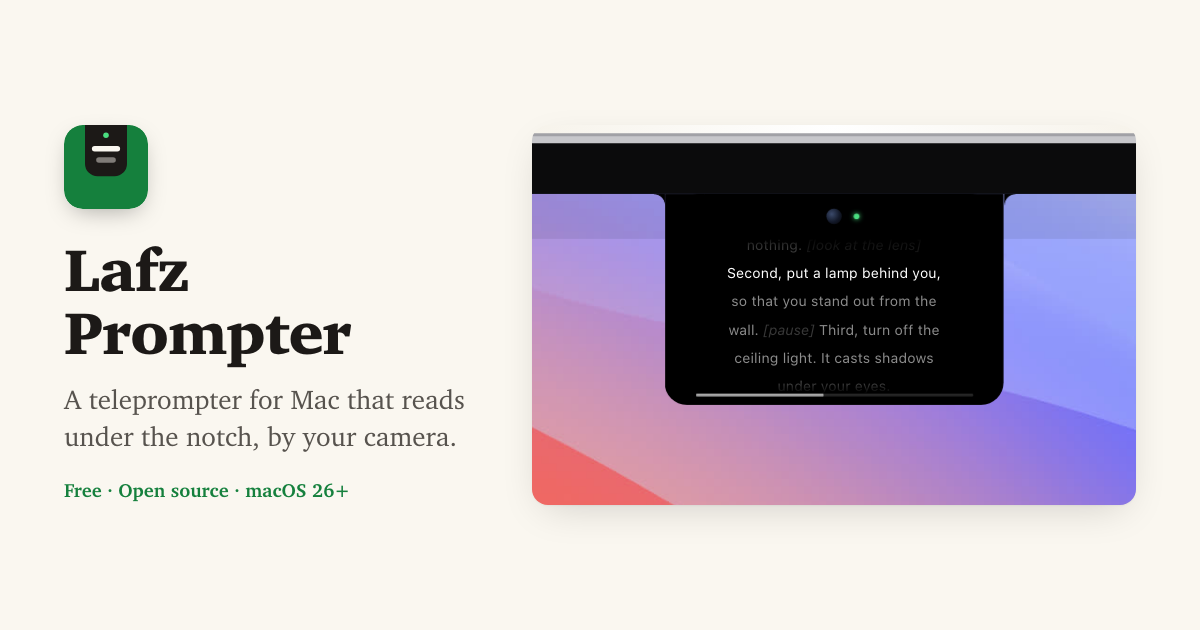
Set it up in a minute
- Download Lafz Prompter, unzip it and drag it into Applications. With Homebrew, run
brew install --cask ranawaqas-ai/tap/lafz-prompter. - Open it. It lives in the menu bar and shows the prompter under the notch.
- Copy your notes and press ⌃⌥V, or open a Word, PDF or text file with ⌃⌥O.
- Turn on Settings › Behavior › Hide from screen recordings, so the prompter stays out of anything you share.
- Join the Zoom call and press ⌃⌥P to start scrolling. ⌃⌥← and ⌃⌥→ change the speed.
Let it scroll when you talk
With voice activation on, the script moves while you speak and waits when you stop, so a question from someone else doesn't leave you scrolled past your place. The microphone is only used after you press Play, and the audio is measured for loudness on your Mac, never recorded.
Sharing your screen in Zoom
With hiding turned on, Lafz Prompter is left out of what Zoom sends when you share your whole screen, so you can present slides and read your notes at the same time. You still see the prompter on your own screen.
Try it once in a test meeting before an important call. Start a share and check Zoom's preview. The prompter should not be in it.
Google Meet, Teams and the rest
Nothing here is specific to Zoom. The prompter sits above every app, and the same hiding applies to Google Meet, Microsoft Teams, Webex and screen recordings, as long as they capture the screen through macOS.
More guides
Free and open source · macOS 26+