How to read a script and still look at the camera
Viewers can tell when you read. Your eyes drop or move sideways, away from the lens, and the eye contact is gone. The fix is to put the words as close to the camera as you can, and keep only a few lines visible at once.
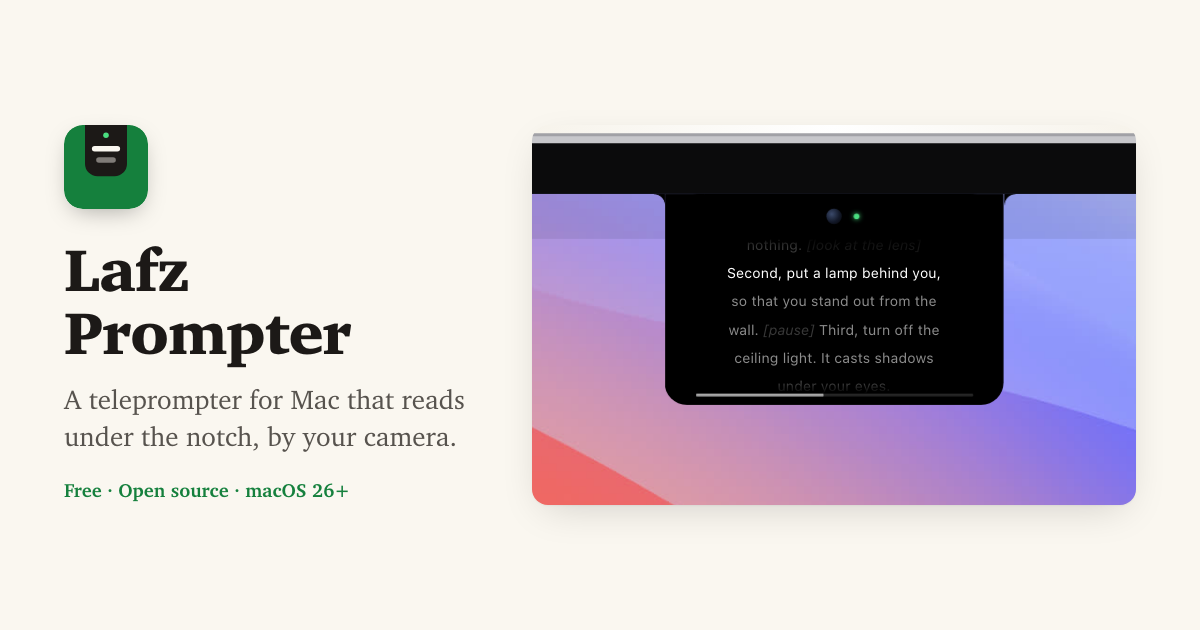
Put the words next to the lens
On a MacBook the camera is in the notch at the top of the screen. Lafz Prompter hangs your script from the notch, so the line you are reading is about a finger's width below the camera. From the viewer's side, your eyes look at the lens.
On an external display it sits at the top of the screen instead. Put your webcam on top of that display, centred, and you get the same effect.
Steps
- Download Lafz Prompter (free) and open it from Applications.
- Load your script. Paste it with ⌃⌥V, or open a Word, PDF, Markdown or Fountain file with ⌃⌥O.
- Make the text big enough to read at arm's length with ⌃⌥=, and keep the prompter narrow, so your eyes move less from side to side.
- Press ⌃⌥P to start. Set a speed you can keep with ⌃⌥← and ⌃⌥→, or turn on voice activation so it scrolls only while you speak.
Tips for sounding natural
Write the script the way you talk, in short sentences. Put stage directions in [brackets]. Lafz Prompter dims them, so you see [pause] or [smile] without reading it out.
Read it through twice before you record. The line you are reading is the brightest one, and the text above it fades, so your eye stays on the next words. If you lose your place, ⌃⌥↑ and ⌃⌥↓ move back and ahead.
Recording at the same time
If you record your screen while you read, turn on Settings › Behavior › Hide from screen recordings. The prompter then stays out of screen recordings and screen shares, and only the camera sees you reading.
More guides
Free and open source · macOS 26+